
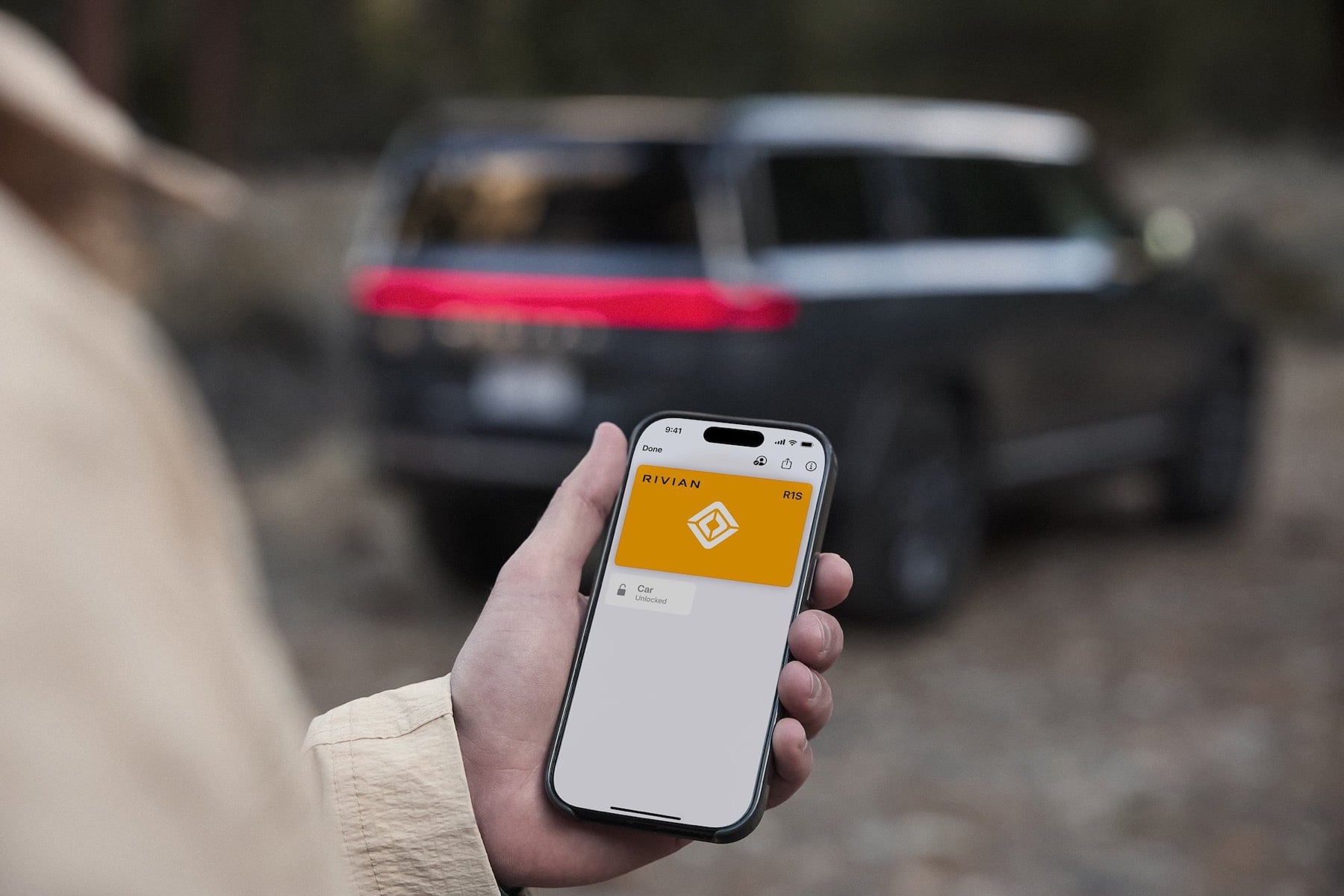
Rivian quietly packed a lot into the 2025.46 update for Gen 2 R1 owners, but two features immediately stole the spotlight: Universal Hands-Free and Digital Key. I have seen a ton of chatter online about Digital Key in particular, especially from folks trying to set it up right after installing the update and running into issues.
I wanted to help clear up some confusion, and this info comes directly from the Rivian tech team working behind the scenes to make sure Digital Key rolls out smoothly.
First thing to know, once you install 2025.46, Digital Key might not be ready right away. Even though the software is installed, you still need to wait for an email from Rivian letting you know your vehicle is ready to complete Digital Key setup. I show exactly what that email looks like in my video below around the 0:41 mark.
Only after you get that email should you jump into the vehicle and start the setup process. If you try before then, you may hit errors or see missing options, which has understandably led to some confusion online.
Of course, even once everything is “ready,” technology is still technology. Things do not always work perfectly on the first try. Before reaching out to Rivian Service or blowing up my inbox, Rivian asked me to share a few simple troubleshooting steps that solve most setup issues.
Before you start troubleshooting, also make sure your phone software is up to date. Rivian recommends running at least iOS 18.5 on iPhone, with iOS 26 strongly recommended, or Android 15 on Android devices. Several setup issues people have run into were tied to older OS versions rather than the vehicle software itself.
Here’s what to try, in order:
- Do a hard reset in the vehicle by going to Center Display, Settings, Service, then Restart.
- Toggle Bluetooth off and back on your phone.
- Restart your phone, whether you are on iPhone or Android.
- Delete your existing Bluetooth key and set up Digital Key from scratch instead of converting it.
Note: Once you setup your Digital Key in the Wallet app, make sure to open the Rivian app to finish setting up permissions. This has to be done for each person you invite on their own device.
That last one is especially important. Several people have had better luck starting fresh rather than trying to convert an existing key.
If you still run into problems after trying all of the above, feel free to reach out to me at [email protected] and I will do my best to help however I can. You can also open a support ticket with Rivian, though in some cases the fix is simply waiting a bit longer.
Sometimes it really does just start working later. Ask me how I know.



Will this work on Samsung Galaxy Ultra watches too?
Thanks, this is great. Another handy thing to know…. If you share a digital key with an existing authorized driver (one that has their own Rivian login) and an existing Bluetooth Phone As A Key, when you first send them the key, it creates another driver in your Drivers and Keys section of your app. To move/assign that new digital key to the existing authorized driver account, the receiver actually fixes this. After accepting the digital key, that user should open their app and they will be asked if they want to associate the new digital key with their existing rivian profile. When they say yes, it will delete their Bluetooth PaaK and add the new digital key. All of this takes several minutes to reflect in the owners app under their Drivers and Keys section.
Since enabling Digital Key, I am no longer able to access remote controls in the app. The app tells me “pair your phone to access more features.” How to do I get these functions back?
Nevermind, seems you have to click and authorize “additional remote functions” using the digital key. Should be on by default.
With the old phone as key, I was able to create Rivian accounts for my under 18 children and assign them a phone as key understanding that their key would allow them to drive (not optimal but accept the risk). With the new digital key, Samsung Wallet won’t even let my 12 year old child register the wallet app. My 16 year old child can register the wallet app, but when trying to share a key says they must be at least 18.
The ultimate fix would be to share a key that has permissions to enter the vehicle but not drive. But now that I deleted their old phone as a key, it won’t let me add them back using this method because their devices technically support the new key, I just can’t add it because of age restrictions.
Is this something on the road map?
I seem to be stuck in some weird state. I couldn’t get it to work initially so I deleted my old key and now I can’t setup a digital key and don’t even have my old BT one.
I spent a couple hours with support on it and they weren’t able to figure it out. I’ve had the car 3 weeks and I fear it will need to go into service for a second time.
I’ve tried nearly every suggestion online, if anyone has any tips I’m all ears.
There’s an easy option. Use the Rivian app with an iPad to gain access, then choose the “share vehicle” option with an alternative email. Then go to that email, accept and set it up. And then login with the new id/password on your phone. This way you’ll at least have Bluetooth access working again with your phone while you figure out your digital key issue with you original credentials.
Nice work around. Of course you need an iPad and not everyone has one. But after 5 hours with support on the phone I tried this and it helped me essentially “unbrick” the truck.
We’re having this same problem too. Mobile tech showed up and still couldn’t fix it, said we’ll need to take it in to a service center (5 hours away). Did you ever get yours resolved?
Anyone else have issues where the app / car forgets that there are drivers and keys setup? It won’t work when I walk up to the car. I have the go under drivers and keys in the app, swipe to refresh a few times. It fails, then eventually works and then all is fine for a bit. Then have to repeat after a few hours…
My son’s phone is iPhone 16E, which does not have UWB. The car key setup went fine, but the car still wouldn’t open. The car was asking to set up the old-style App (BT) Key as well, which at first confused me, until I realized that it was necessary due my son not having UWB. So now he has both Digital and App keys, and it works fine.
For all who have had issues setting up a digital key – there somewhat of a temporary work around to get the Bluetooth access working again from your phone. All you have to do is use the Rivian app on an iPad and use the “share vehicle” option using an alternative email and then login using those credentials with the app on your phone. At least now I have access again from my phone while I try and figure out my digital key issue.