
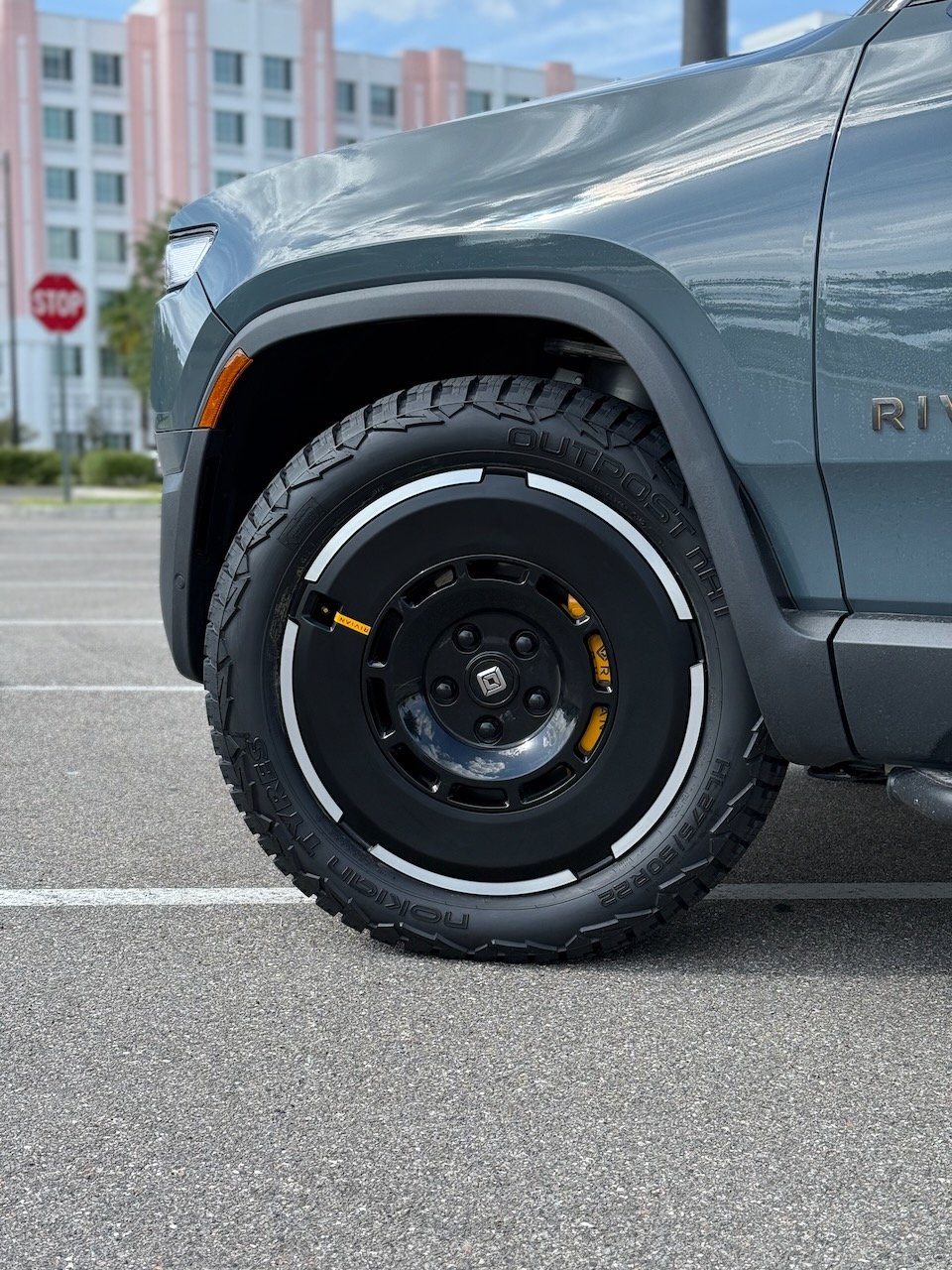
The RivianTrackr Tire Guide recently integrated with Rivian Roamer, which means real-world efficiency data from actual Rivian owners is now feeding into the guide to help everyone make smarter tire decisions. The more owners who have their tire setup correctly configured in Roamer, the better that data gets. Here’s how to get set up.
Register for Rivian Roamer
If you haven’t already, head over to rivianroamer.com/join?with=riviantrackr and create a free account. If you want to go deeper, Roamer Plus is $5/month and unlocks drive sessions, charging curves, analytics, leaderboards, battery health tracking, and automatic wheel and tire efficiency tracking. Worth it if you’re the type who likes to nerd out on your vehicle data.
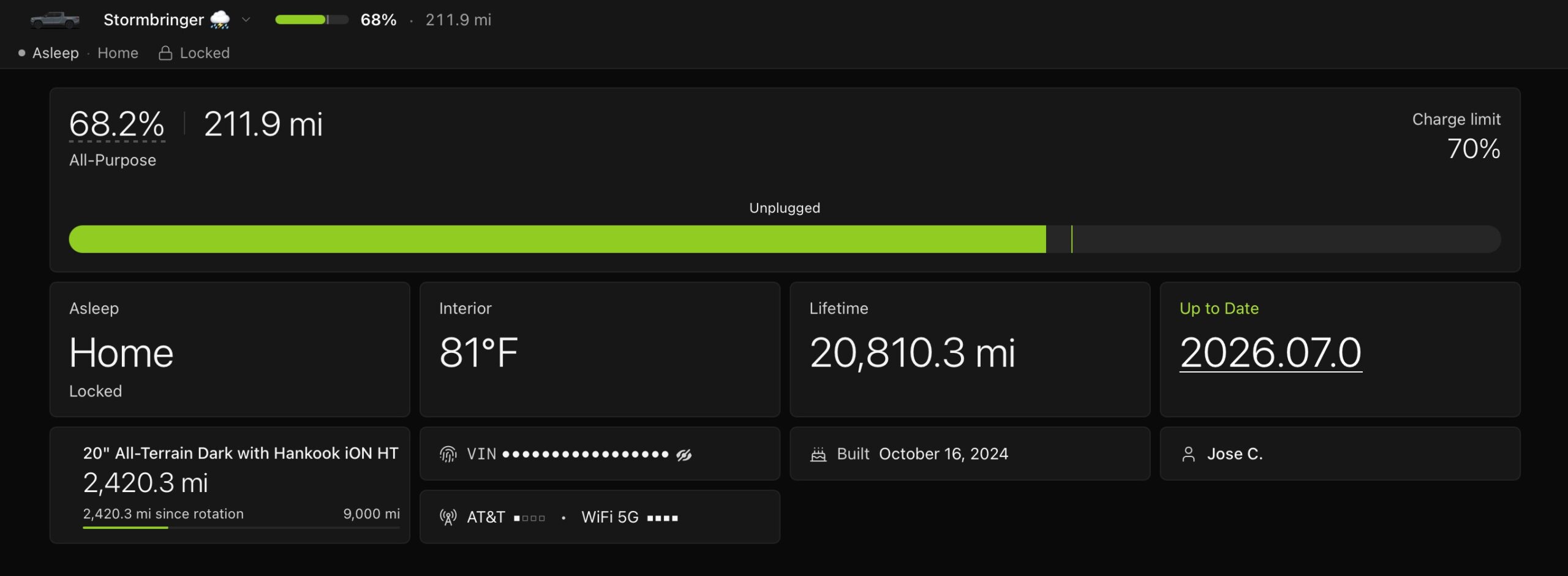
Connect Your Rivian Account & Confirm Tire Setup
Once you’re in, connect your official Rivian account to Rivian Roamer. It’s a safe connection, you can read their privacy policy here if you want to verify before linking.
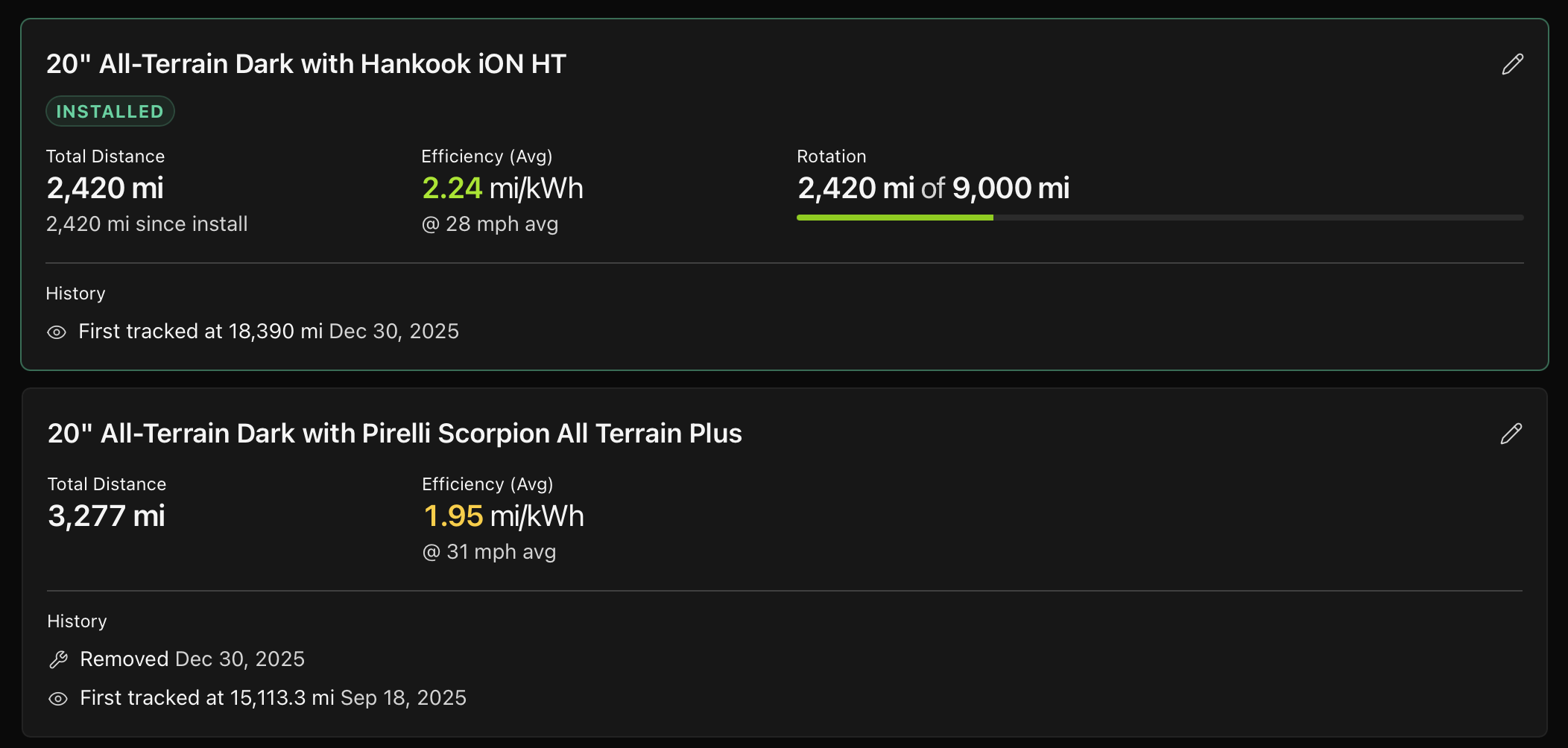
From your Dashboard, go to your Vehicle and select Wheels & Tires. Rivian Roamer will try to auto-detect what you have installed, but take a second to confirm it’s right. Hit the pencil icon in the top right corner and make sure the correct tire is selected under Tire. The tire list there is sourced directly from the RivianTrackr Tire Guide, so it stays current.
If you ever swap tires down the road, just make the change in your Rivian’s service menu and then come back to update it in Roamer the same way.
That’s really it. Once your tire is set correctly, your anonymous efficiency data starts contributing to the Tire Guide automatically.
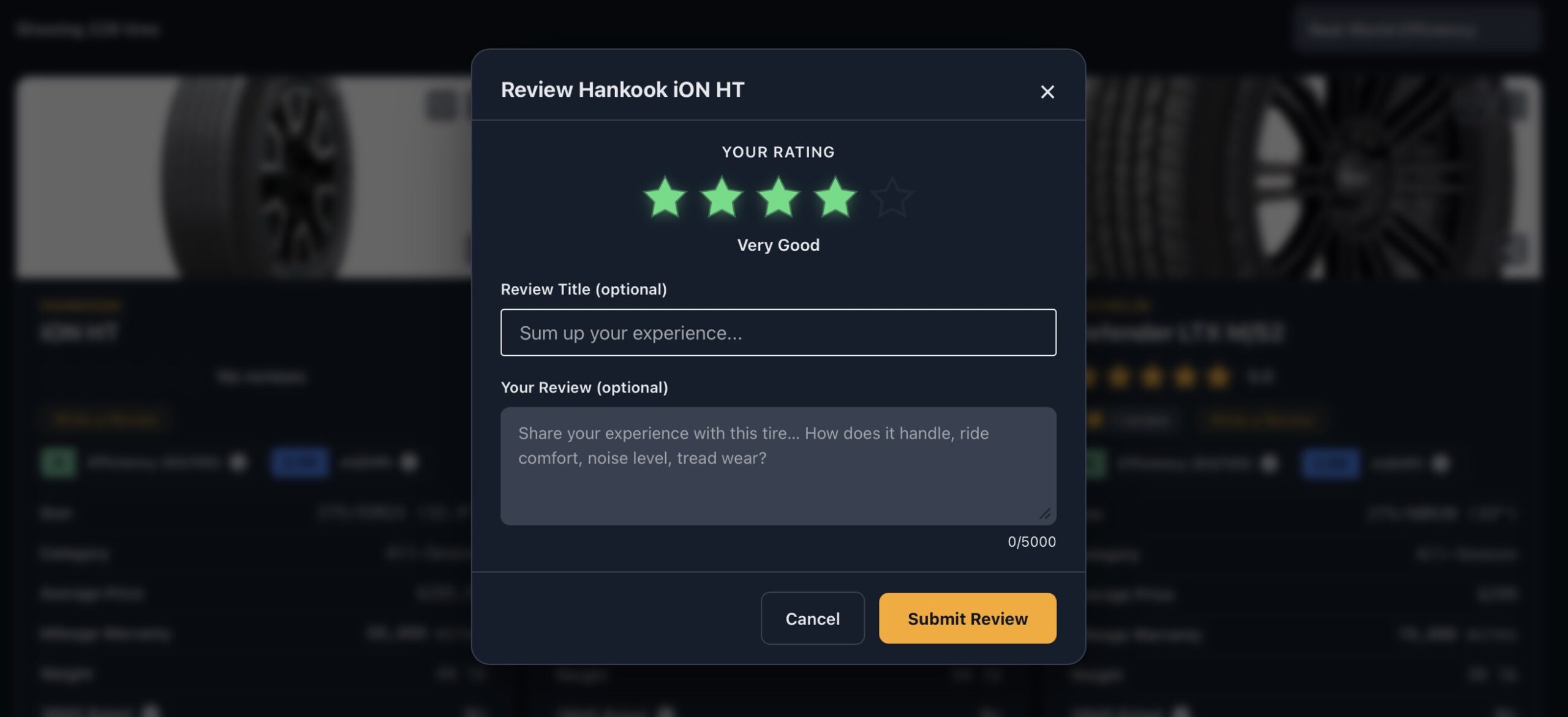
Leave a Review While You’re At It
If you’ve been running your current tires for a while, consider leaving a review on the RivianTrackr Tire Guide. You can search by size, wheel type, and vehicle to find your setup and drop some notes for other owners who are shopping. Those reviews genuinely help people make better decisions.
And when you’re ready to buy new tires, the Tire Guide is a good starting point to see what’s available for your wheel size and vehicle. Affiliate links are there if you want to support the site, but no pressure either way.
More data from more owners makes the guide more useful for everyone, so thanks for taking a few minutes to set this up.



So the wheel configuration option is only available to paid roamers?
Quick question, does the tire efficiency data exclude trailer towing sessions?
Towing is excluded from the API
I was hoping you would say that! This is a great feature and sure helps put actual tire data out there! It would be cool if you could hover over the info graphic and see the number of contributing vehicles for each specific tire. Thanks Jose!
I can do that!
Done! Clicking on the (i) icon next to the mi/kWh on a specific tire will now show you how many driving sessions and vehicles are associated to a specific tire.
Mine just says that it will appear here once your vehicle reports it.
That’s what mine still says – I even tried changing tires in the truck.
Same. Even a plus member and I don’t see the options to add the tires. Is this a web thing only and not in mobile?
In mobile, click the 3 dots on the bottom right and click Wheels and Tires!
I think everyone commenting can get to the wheels and tires screen, but it says there’s no configurations and that it’s waiting on the vehicle to report. This despite the fact I’ve had custom wheel/tire selections ever since the update, and every other report field is “live”
Thanks. Got mine going. Look forward to the information. Wish it calculated from time on vehicle or maybe it will update. And saw in screenshot that you have .07. Hope it’s a good one!! 😀
Are you still seeing this? The wheel/tire configuration stream isn’t “live” from Rivian. They only send updates every so often, especially if you sue a secondary account when signing up.
For support I recommend reaching out to [email protected]
This is truly amazing work, and has already helped me decide if I want to purchase a tire set for the summer. I’m wondering if someday wheel information can be in the database like the tire options. Start with Rivian OEM wheels, then standard aftermarket that cater to Rivian vehicles (ie. Atomic, EV Sportline, Black Rhino to name the more popular ones). It’s difficult to accurately rate tire efficiencies without that info. Thanks for putting this together!