
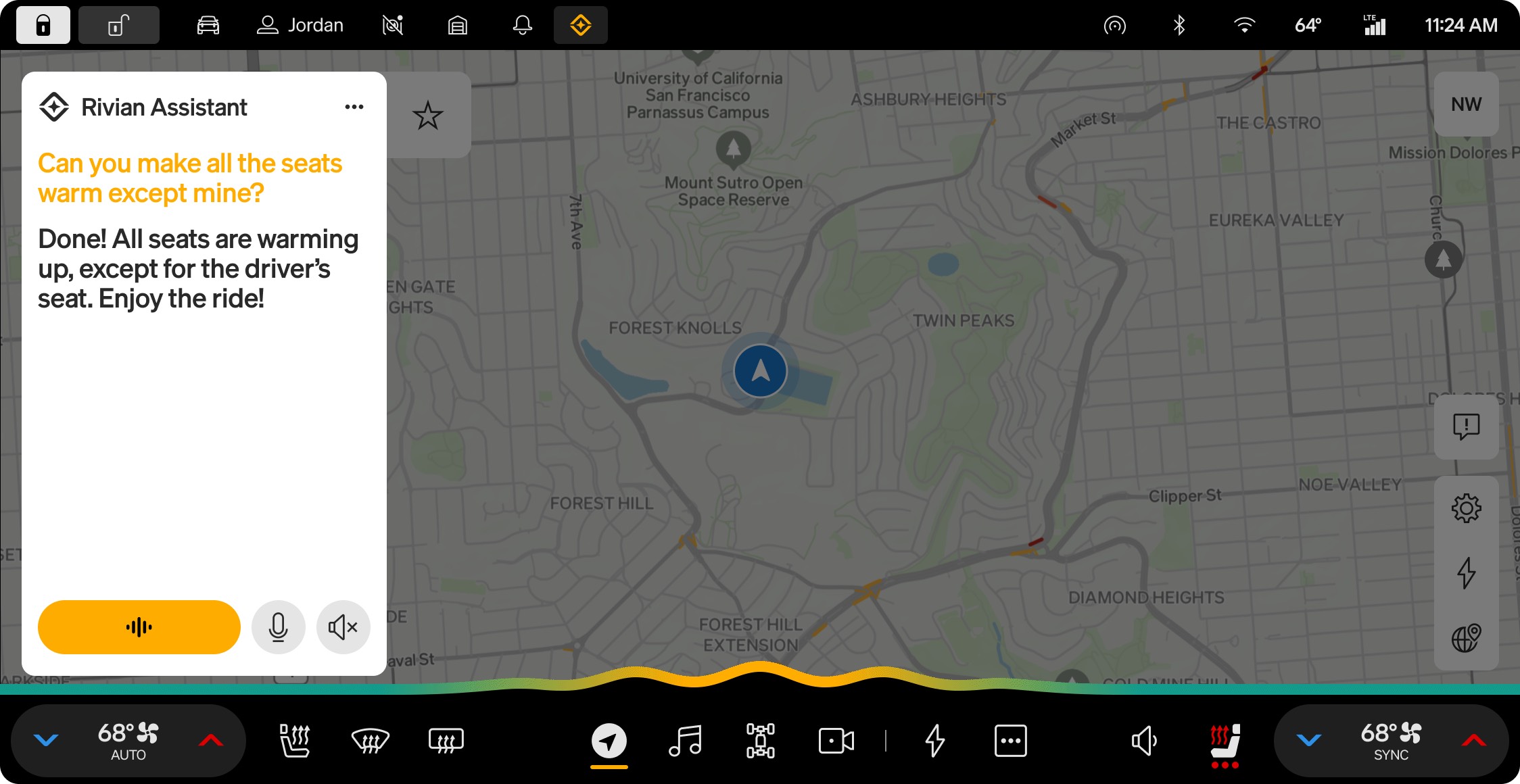
Rivian Assistant launches with the 2026.15 software update and at launch the only calendar it knows how to talk to is Google Calendar. If your life runs out of iCloud or Outlook, that means your appointments aren’t reachable inside the car yet, and the whole pitch of asking the assistant to navigate to your next meeting or push an event back by 30 minutes kind of falls apart unless you take a few minutes to mirror your existing calendar into a Google account.
Rivian has confirmed to me that support for other calendars is coming, just no specific timeline. So if you want the assistant to feel actually useful from day one and you’re not already a Gmail person, the workaround is to get your real schedule flowing into a Google Calendar that the car can read.
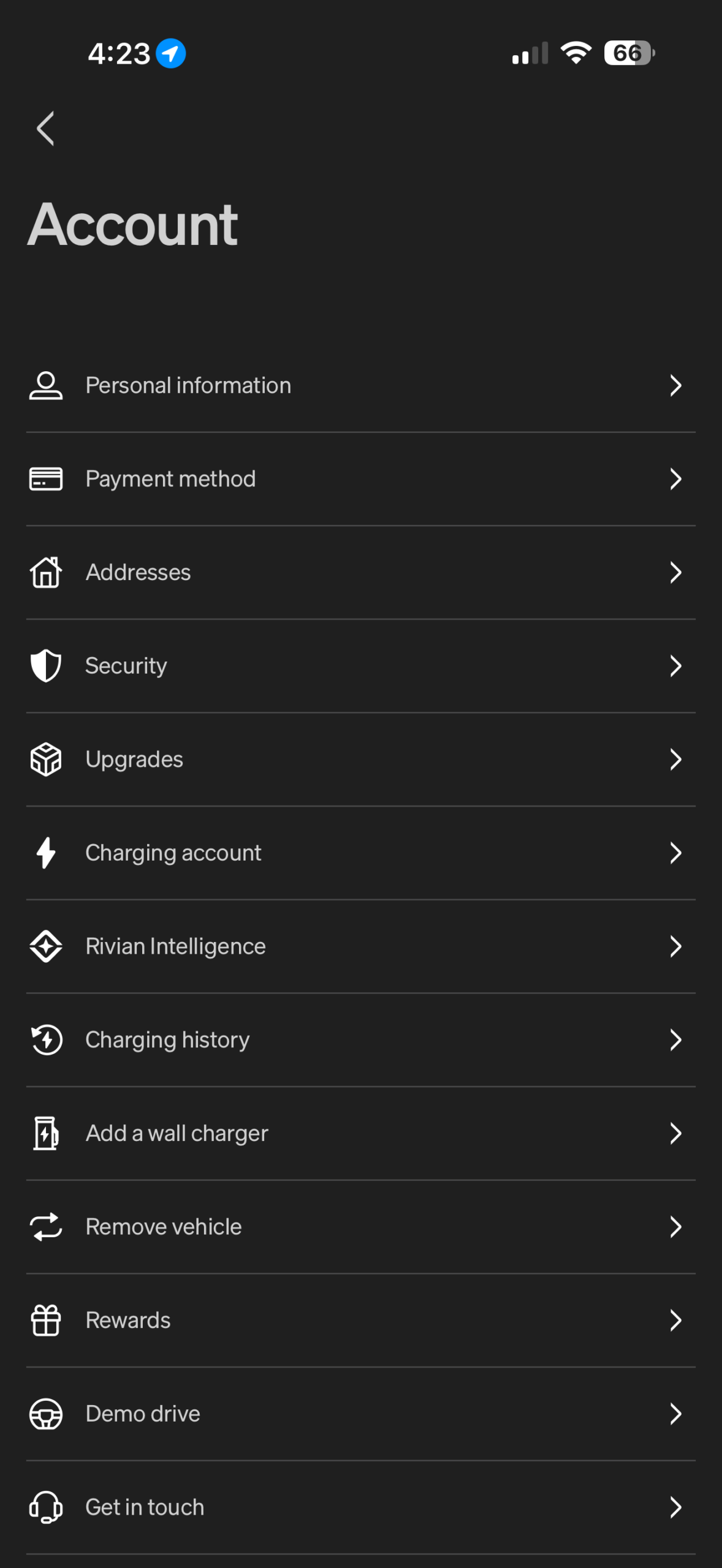
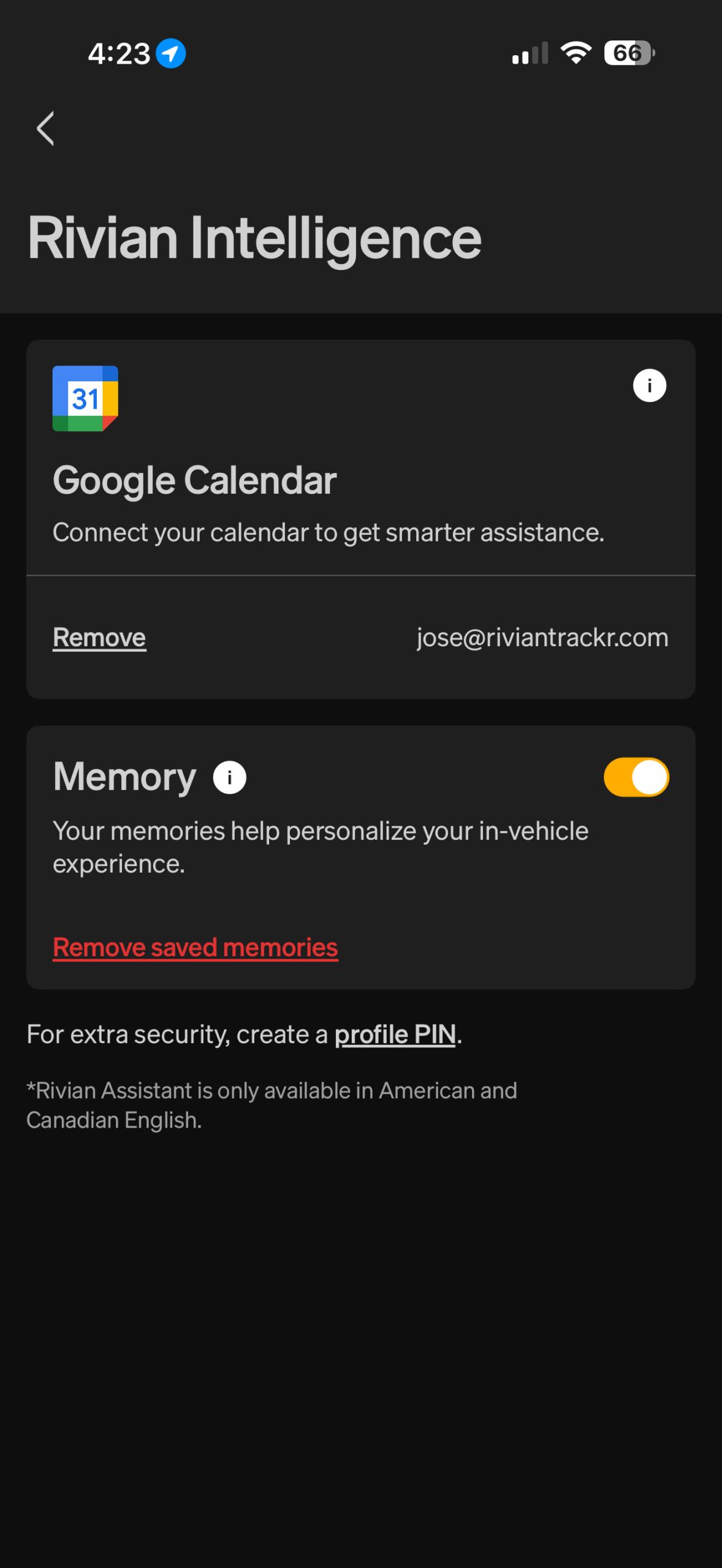
Before getting into the how, one quick setup note. Whatever method you end up using, the Google account you sync everything into needs to be the same Google account you authorize inside the Rivian app, otherwise the assistant won’t see anything. The toggle for it lives in the new Rivian Intelligence section that showed up in version 3.12 of the mobile app, and it’s off by default, so you’ll need to flip it on once 2026.15 lands on your vehicle.
Now here’s the catch worth flagging upfront. The free public URL method that used to be a popular workaround, where you’d publish your iCloud or Outlook calendar to a link and subscribe to it inside Google Calendar, doesn’t reliably work anymore for this use case. Apple changed how iCloud public calendar subscriptions behave, and Google’s polling of those URLs has gotten slow and unreliable enough that even when you can get it connected, events can take hours to show up or update. For something like Rivian Assistant, where you actually want the car to know your real schedule in real time, that’s not good enough.
That means the practical answer right now is a third party sync service. The good news is there are solid options and they’re not expensive.
CalendarBridge
CalendarBridge is probably the most popular and well tested option. It connects to Google, iCloud, and Outlook through proper authentication and copies events between them in near real time. You set up two sync directions, one from your source calendar to Google and one back the other way, and from there creating or moving an event in either place updates the other within a minute or two. Plans run around 5 to 10 dollars a month depending on how many calendars you connect.
This is the option I’d recommend if you just want something that works and you don’t want to think about it again.
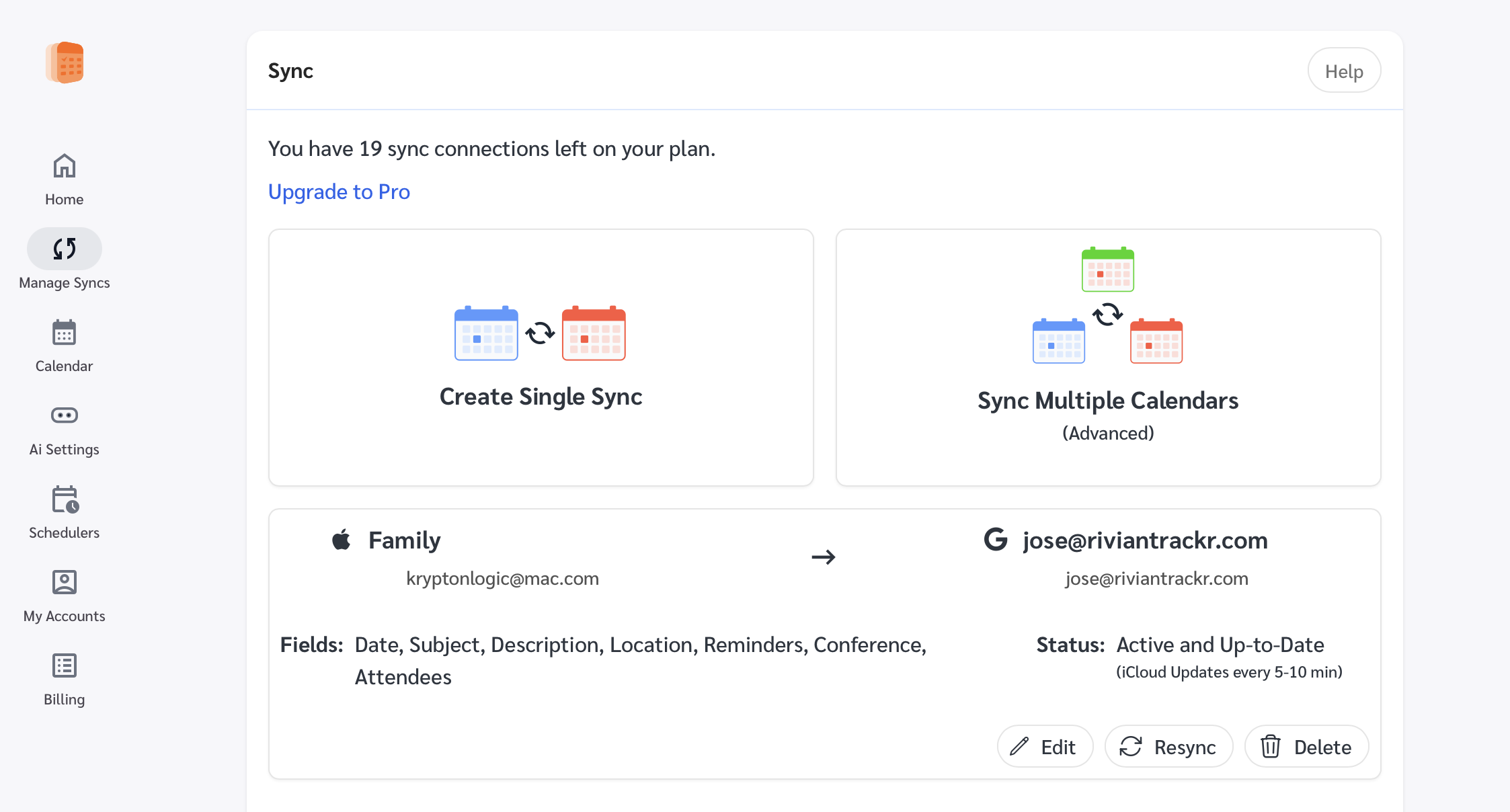
OneCal
OneCal works similarly with a slightly cleaner setup flow and some nice privacy options, like hiding event titles and just syncing busy blocks across calendars instead of full event details. Useful if you have a work calendar full of confidential meeting titles that you don’t necessarily want appearing on your truck’s display when your kid is in the passenger seat. Pricing is comparable to CalendarBridge.
SyncGene
SyncGene is another long standing option that handles all three major calendar platforms in one place. Setup is a bit older feeling but it’s reliable and has been around long enough to have worked out most of the rough edges. Worth considering if you want to consolidate Google, iCloud, and Outlook all together rather than just syncing two.
Outlook Google Calendar Sync (free, Outlook only)
If you’re specifically an Outlook user and you don’t want a subscription, there’s a free open source tool called Outlook Google Calendar Sync, usually shortened to OGCS. It runs locally on your Windows or Mac machine and handles two way sync between Outlook and Google with surprisingly few rough edges. The tradeoff is you need to keep your computer on for it to run, and the setup is a little more involved than the paid services. But it’s genuinely free and works well once it’s going. It doesn’t do iCloud, so Apple users are out of luck on this one.
So the rough gut check is this. If you want the easiest experience and you’re okay with a few bucks a month, CalendarBridge is the safest pick. If you have privacy sensitive calendars, OneCal’s title hiding is a real advantage. If you want to sync all three platforms together, SyncGene fits that. And if you’re an Outlook user allergic to subscriptions, OGCS is sitting right there for free.
None of this is permanent, which is the silver lining. Rivian has said Apple and Outlook are on the roadmap. Until those actually land, routing your real schedule through Google is just the cost of admission if you want the assistant to feel like it actually knows what your day looks like.



How about integrating with the most popular smart phone platform in the US?
Global Mobile Operating System Market Share
(2026)Android: ~72%iOS
(iPhone): ~28%
Global popularity doesn’t necessarily equal use base popularity. Guessing those numbers are reversed for the user base.
in the US. … where Rivians are sold
Can’t get CalendarBridge’s site off of France….switched to English, it goes back to French….anyone else?